Milnor programs need to run as administrator to work properly see the following for possible fixes if your programs are not running properly.
- Run as Administrator
- EnableLUA Policy
Run as Administrator
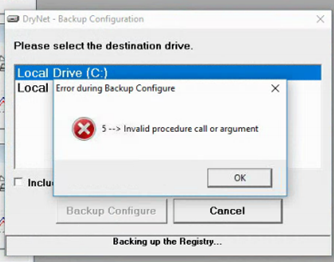
If you are getting an error during Backup Configure as shown in the following image, you will need to run each shortcut of the software in the Multitrac PC as an
administrator, since the backup file is protected from unauthorized activity. These software include Drynet, Miltrac, and Device Master.
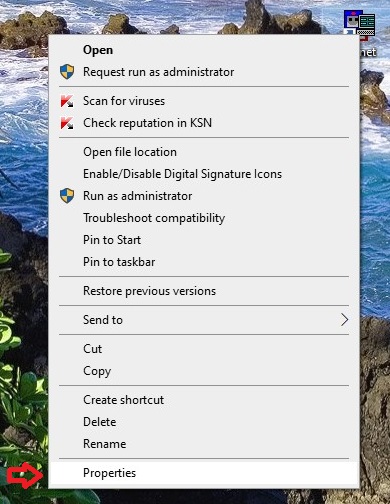
For each of the shortcuts for Drynet, Miltrac, and Device Master, right click and select
properties as shown in the example above. Then, select the
Shortcut tab. Select
Advanced as shown in the image below.
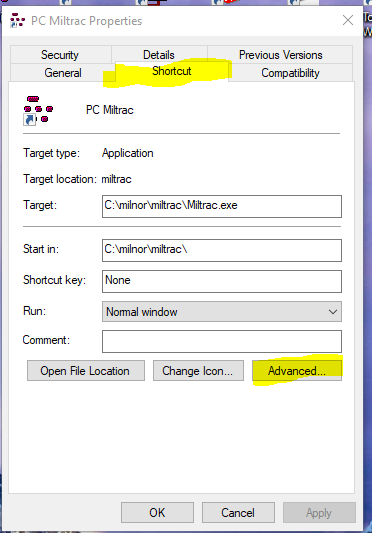
Check the box for
Run as administrator as shown. Then select
OK.
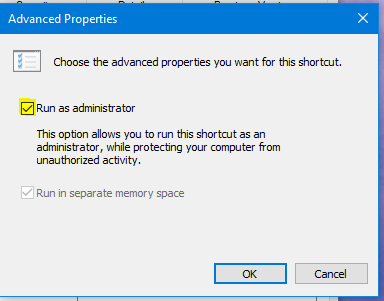
Select
Apply and then
OK to close the Properties window.
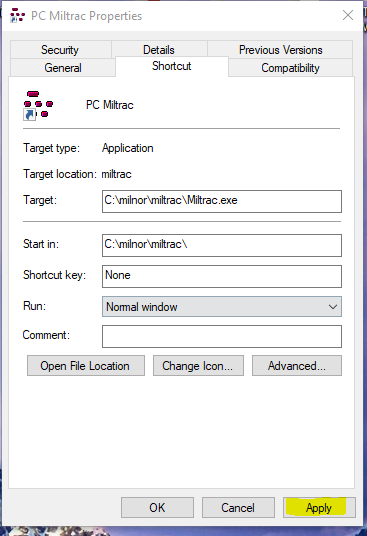
Repeat this for every software in the Multitrac PC.
EnableLUA Policy
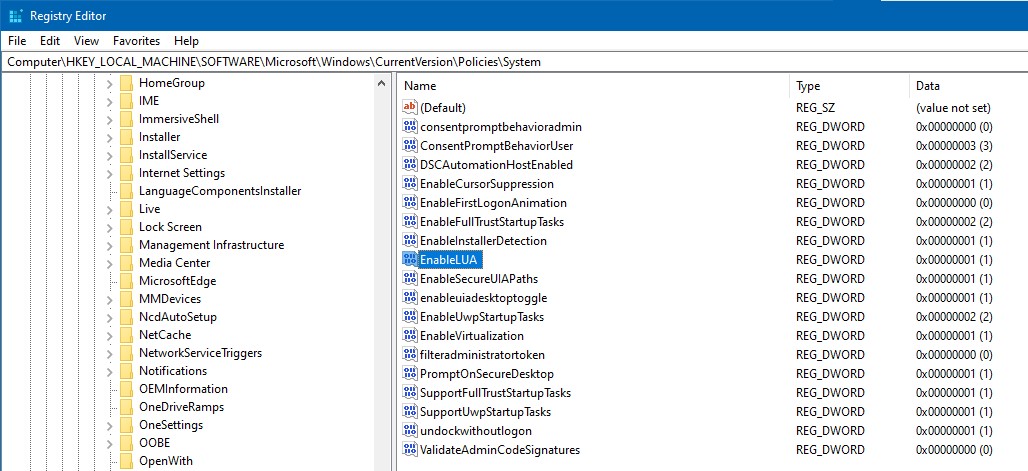
Another use we have encountered is a PC with the Administrative privileges but still has the EnableLUA active. This would need to be set in the Registry.
In the Registry editor, navigate to the following path.
Computer\HKEY_LOCAL_MACHINE\SOFTWARE\Microsoft\Windows\CurrentVersion\Policies\System
One of the Keys will be EnableLUA. This should be set to "0". If it is set to "1" it may cause issues.