3rd party rail systems can interact with a Milnor system through two methods.
- DataFusion
- Allied Interface
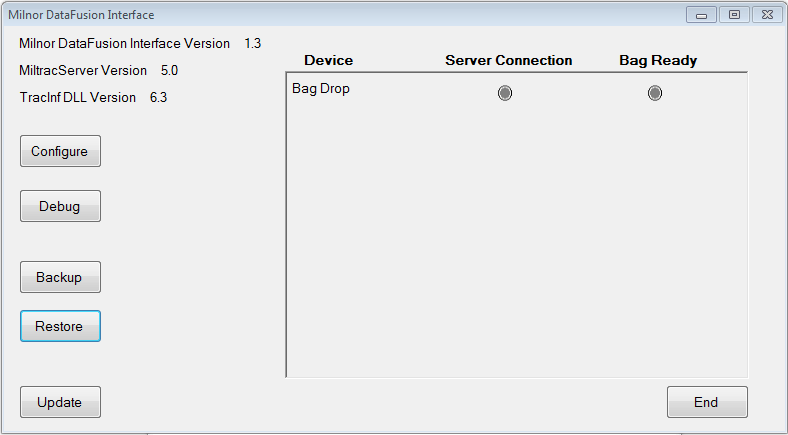
If you have never seen a screen like the one below, then you do not have DataFusion. If you do not have DataFusion, this article is not necessary for you.
In earlier versions of DataFusion the Configure, Debug and Update icons were separate and in a DataFusion folder on the desktop. This version below consolidated the 3 programs into one interface. The functions are the same. If you click on the device like "RAIL 1" you will see the configuration details similar to the Configure screens below.
.
Datafusion troubleshooting
- Three programs need to be running for DataFusion to work:
- PC Miltrac™
- Milnor DataFusion Interface
- Miltrac Communicator
- Verify the "Server Connection" and "Bag Ready" lights are lit where expected (see below)
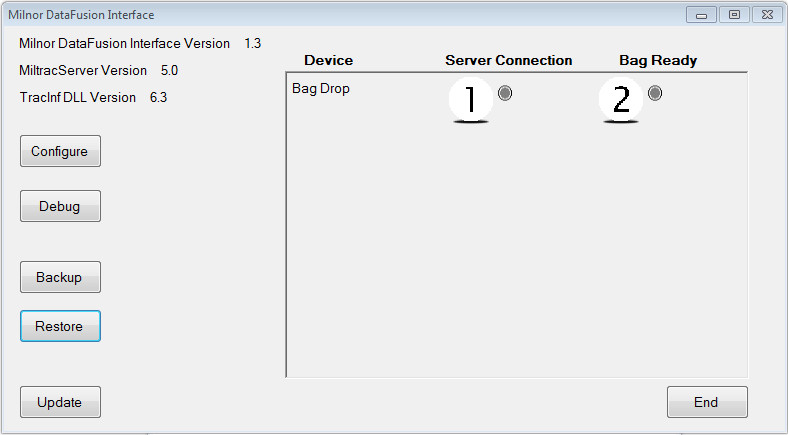
- If either of these lights is not lit, the Milnor system will not attempt to transfer with the rail system.
- Use the "Debug" button to view a send and receive log between Milnor and the 3rd party rail system.
- Sent items come from Milnor.
- Received items come from the rail system.
- If you see received messages and no sent messages then the issue is on Milnor's side and usually Miltrac is not responding. Reloading Miltrac will usually solve that issue, if you don’t see received information then it is a rail system issue.
- Signals are the same as if you are connected by an allied interface of inputs and outputs.
Sent (outputs)
Received (inputs)
- Request a bag
- Drop bag
- Received load
- Bag ready
- Cake data
Each rail system has different things to look for but still very similar
Other things I look for is network connection between us and them, go to run in control panel and type in ping then ping their PC to ensure network connection.
Ex. Ping 192.168.0.21
Finding Network Address
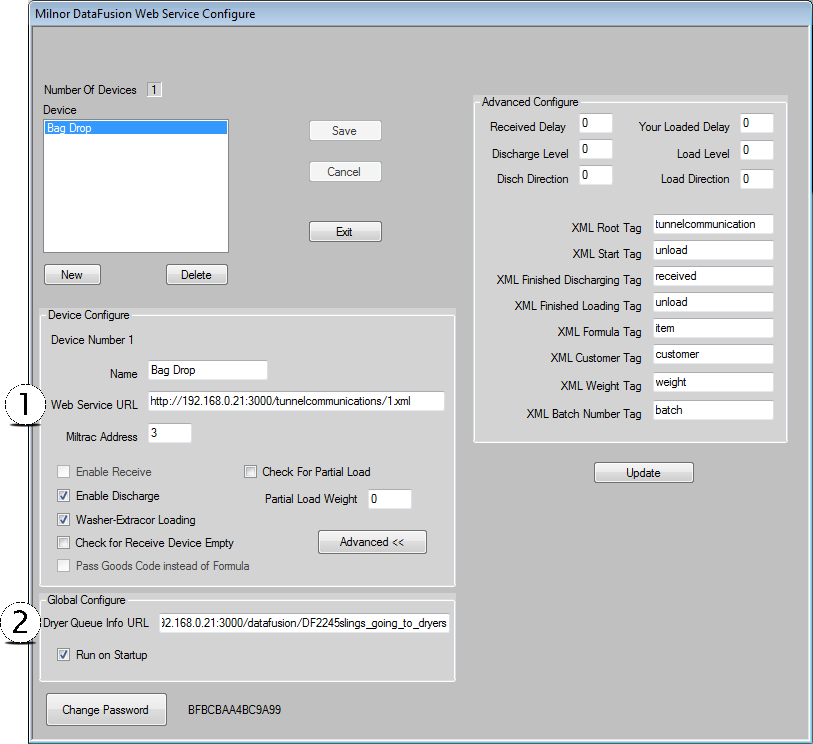
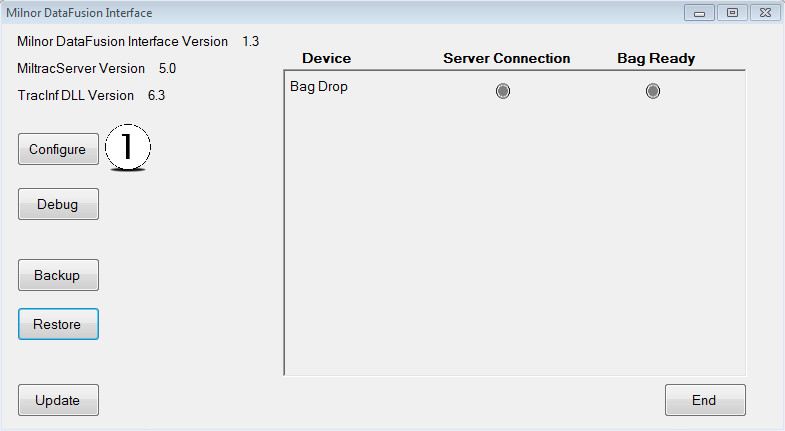
- Click the "Configure" button.
- Login
- Web Service URL (1) and the Dryer Queue Info URL (2) can be used to find more detailed data using an internet browser.